PowerPoint, PDF or Video: Which to Share?
Choose a presentation format based on editing, slide browsing, embedded media, and narrated playback.

On this page (8 sections)▼
Choose a presentation format according to what the recipient needs to do. PowerPoint is useful for editing or compatible slide browsing, PDF for a fixed reading copy, and video for a timed explanation.
There is no universal winner. Compare the audience's task, required media, and access conditions before exporting several versions.
1. Start with the recipient's next action

Ask whether the audience will edit, skim, inspect details, or watch a guided explanation. That decision is more useful than choosing the format with the smallest file size.
Examples:
- A collaborator needs to revise slide wording.
- A client needs to compare pricing figures.
- A prospect needs to watch a product walkthrough.
- An investor needs a concise deck they can revisit.
These are illustrative tasks, not evidence that every audience prefers the same format. If the recipient has an established workflow, ask what it supports before forcing a new one.
2. Compare the three formats
| Requirement | PowerPoint | Video | |
|---|---|---|---|
| Edit the source slides | Suitable with permissions and compatible tools | Not the original slide-editing workflow | Not the original slide-editing workflow |
| Browse information at your own pace | Suitable in a compatible viewer | Often useful for fixed pages | Requires seeking and pausing |
| Hear a timed explanation | Depends on saved media and playback support | Not a replacement for deck narration | Suitable after reviewed export |
| Preserve interactive slide behavior | Must test the viewer | Do not assume preservation | Becomes recorded playback |
| Retain a fixed reading copy | Depends on delivery | Appropriate after layout review | Appropriate for viewing a recording |
This compares purposes, not every product's capabilities. Test the tool you actually use.
3. Use PowerPoint when editability or slide context matters

Keep PPTX when the recipient needs to edit the presentation or use features supported by the chosen player. Review speaker notes, hidden slides, linked media, and any downloadable original.
Microsoft explains the difference between embedded and linked video dependencies. Microsoft: Insert and play a video file An external resource can fail even if the rest of the deck opens.
If you use a browser sharing service, check its exact requirements. Upload support is not proof that all transitions, fonts, or media behave like desktop PowerPoint.
4. Use PDF for a reviewed fixed copy
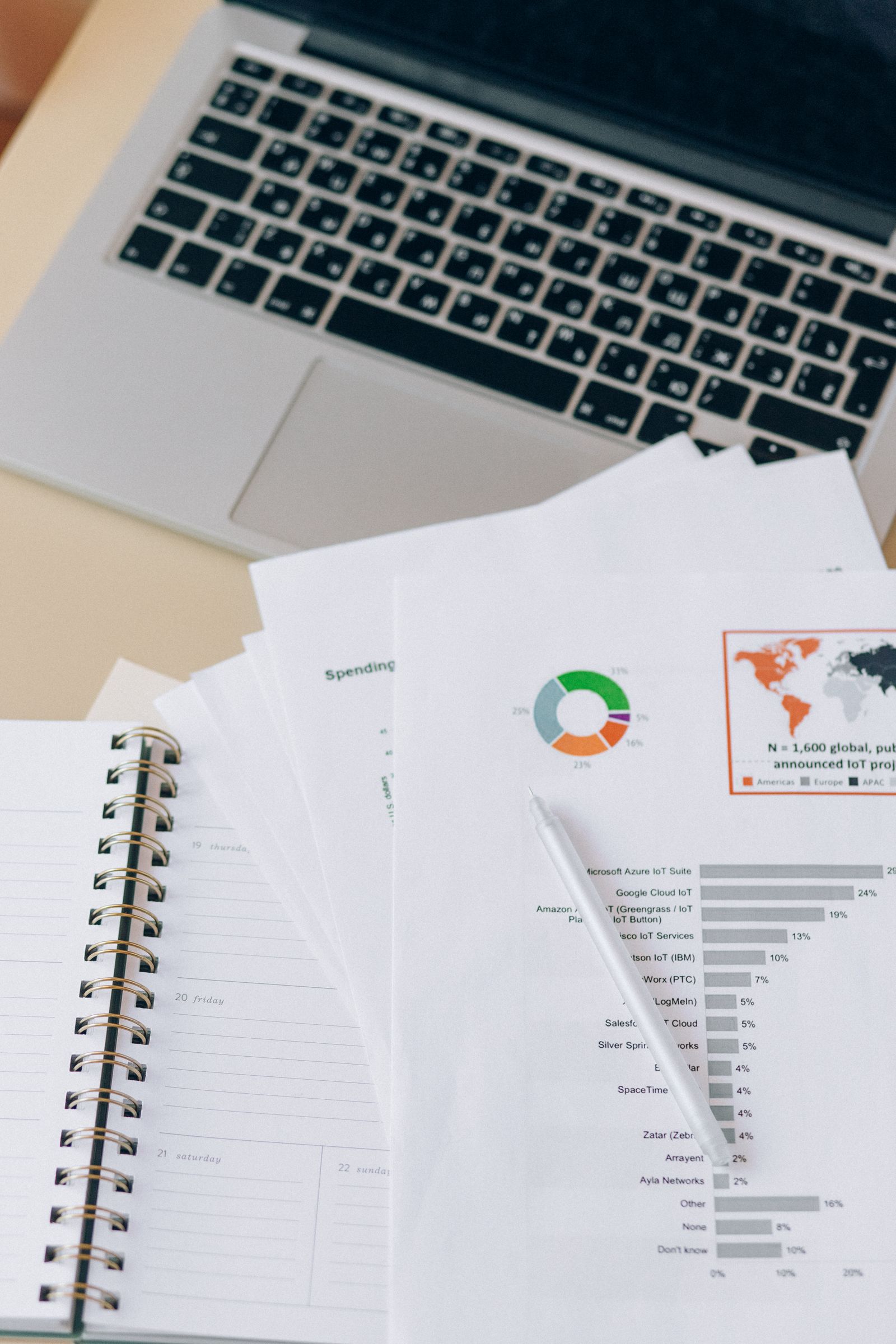
A PDF can make a proposal easy to inspect as a sequence of pages. It is useful when the information matters more than the presentation's motion or narration.
After exporting, inspect:
- Page order and orientation.
- Clipped text and changed line breaks.
- Readability of tables and diagrams.
- Working links.
- Whether the output contains unintended notes or draft material.
Do not tell recipients that a standard PDF export retains the interactive PowerPoint media experience. If they need the demo, provide a clearly labeled playable resource alongside it.
5. Use video for a guided sequence
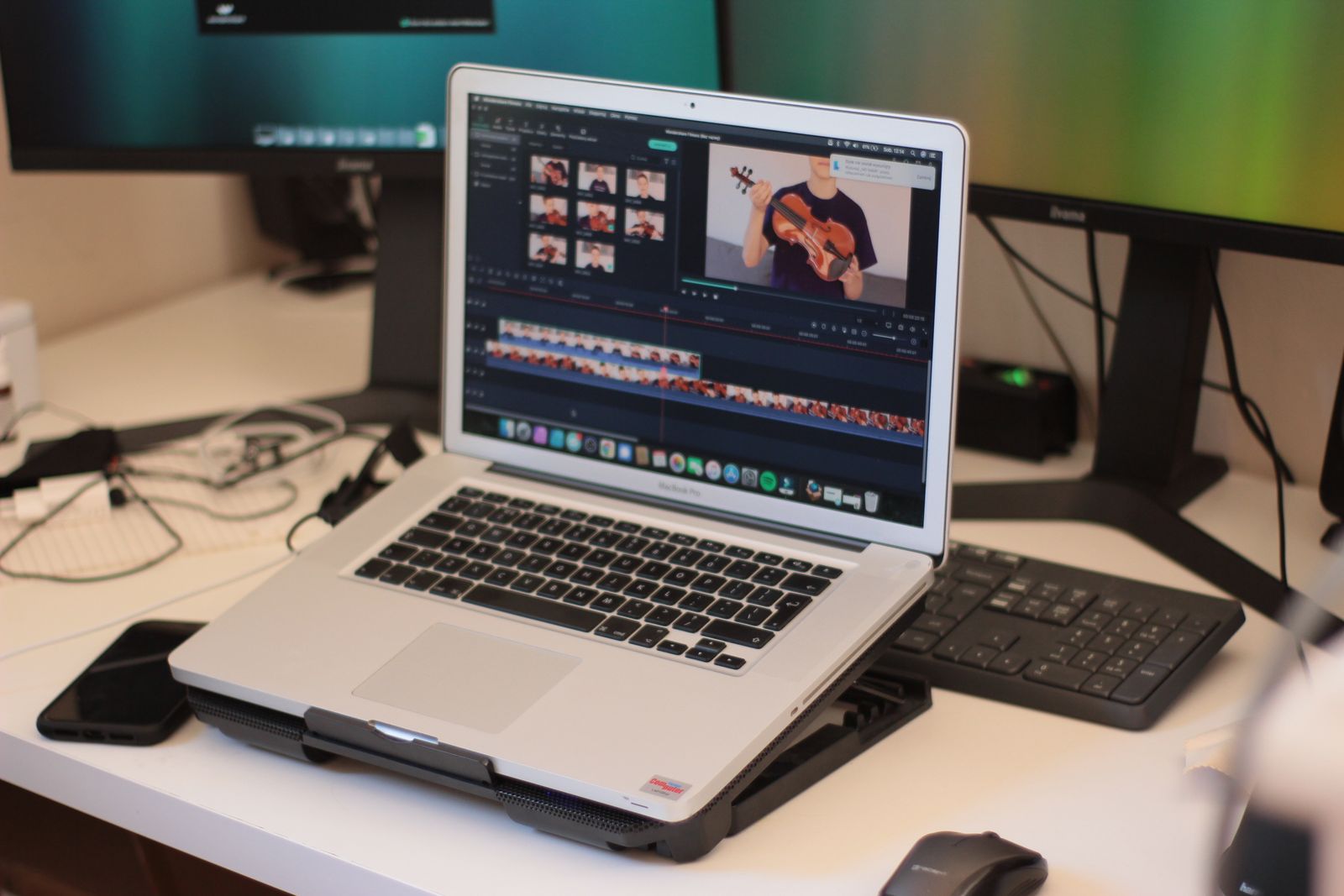
A video is useful when the order, explanation, and pacing are part of the message. Microsoft's export guidance provides a presentation-to-video workflow. Microsoft: Turn a presentation into a video
Watch the entire output. Check speech, captions or a written equivalent, timing, and embedded segments. If viewers will need to compare figures, include a reference document or clearly identify the relevant section.
A recording gives you control over the prepared sequence, but it does not prove the audience watched carefully. Avoid using playback statistics as a substitute for questions or feedback.
6. Share one primary format and a purposeful alternative
Choose a main path so the recipient knows where to begin. A second format should solve a specific problem.
Please use the PDF for reviewing the proposal. The video explains the implementation approach if you would like a walkthrough.
Keep the versions consistent. If the figures change in the deck, revisit the PDF and recording too. Sending three differently updated outputs creates uncertainty about which one is authoritative.
Test the exact sharing links and permissions for each output, including on a phone when relevant.
Frequently asked questions
Which format keeps embedded media?
A compatible PPTX player may preserve the required media, while a reviewed video can capture a timed experience. Test the specific output rather than relying on the extension.
Which format is easiest on a phone?
It depends on the layout and task. A readable PDF or video can work well, but dense pages and tiny slide text need actual mobile testing.
Should I send all three formats?
Only if each serves a clear purpose and you can maintain consistency. Start with one recommended path and add a useful alternative.
Before you share
Choose the smallest set of formats that lets the recipient complete the task. Verify the output, label the purpose, and keep every shared version consistent.
Related articles
Sources and editorial disclosure
Primary documentation reviewed October 11, 2026. Product settings and entitlements can change; use the linked help for current details.
VDR Directory is published by the SendNow team. SendNow is included where relevant to the task. This guide is based on public documentation and editorial recommendations, not a claim that a signed-in product demonstration was performed. Stock photos illustrate the topic; they do not show the described product interface or prove feature behavior. Examples and verification checklists are illustrative unless explicitly stated otherwise.
Related Guides & Research
Recommended next reading for deal teams and transaction leaders.
How to Share PowerPoint With Video
Share a deck containing a video and verify that recipients can play the embedded demo.
Fix Missing Audio in Shared PowerPoint
Diagnose missing sound by checking media links, browser behavior, export settings, and supported formats.
Remove Tracked Changes Before Sharing
Review and resolve Word revisions and comments before releasing an approved external copy.