Restrict a Document to Specific Emails
Limit access to intended recipients and distinguish an allowlist from simply asking viewers to type an email.

On this page (7 sections)▼
Asking viewers to enter an email and limiting a document to approved email addresses solve different problems. One collects a value; the other decides whether the person can proceed.
If only named recipients should see the file, use an authorization workflow and verify its behavior. Start with a harmless sample so an accidental open link does not expose the real document.
1. Separate identification from authorization
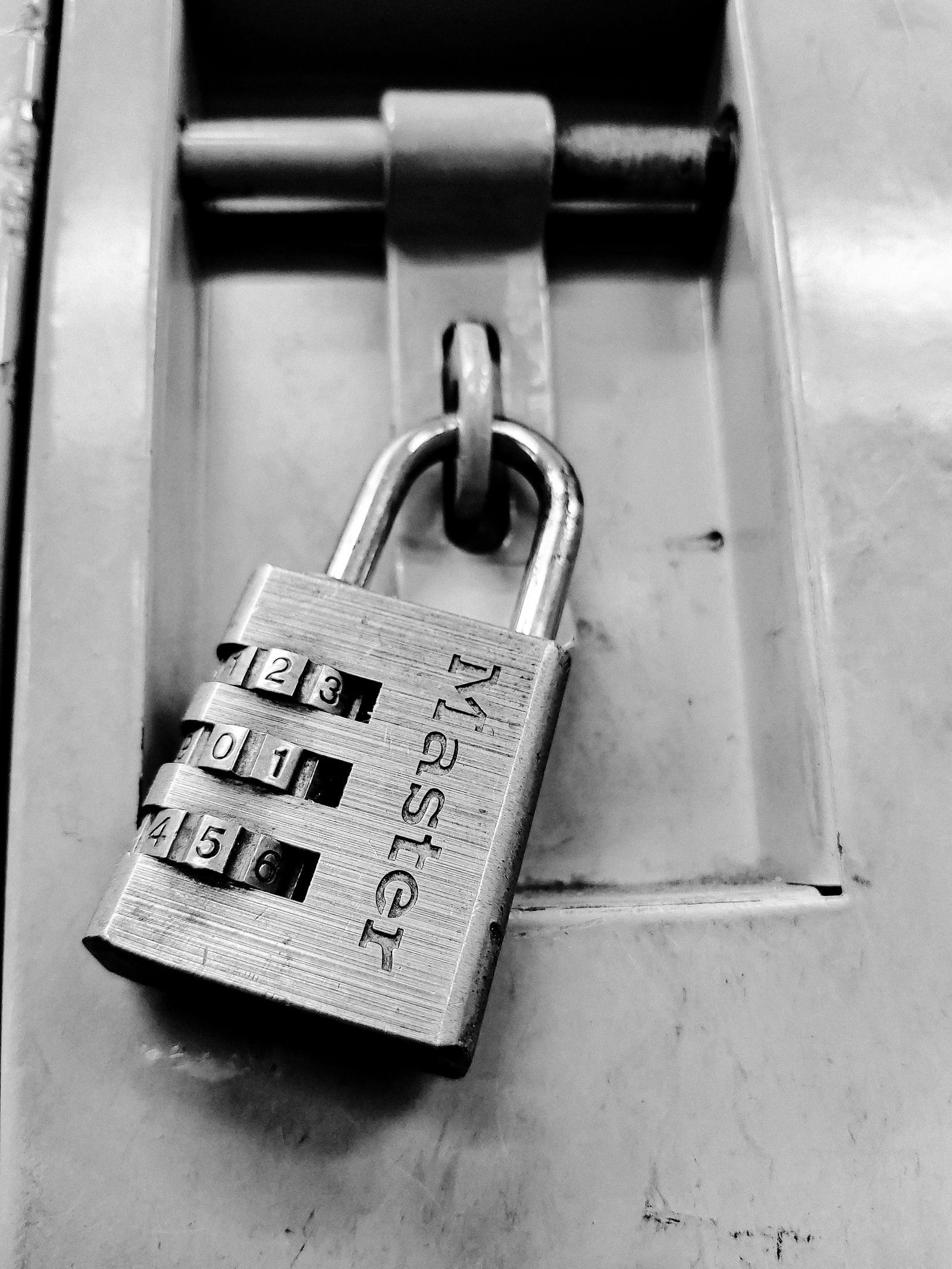
Decide what you need to know before showing the document. A typed email can help organize analytics, but a person may enter a value they do not control. A verified inbox checks access to that inbox. An allowlist determines whether the submitted address is approved.
| Mechanism | Main purpose | Important limitation |
|---|---|---|
| Typed email | Collect a viewer-provided identifier | May not be verified |
| Email verification | Check access to an inbox | Does not establish who is physically using it |
| Approved-email list | Limit eligible addresses | Must be combined with the service's authentication behavior |
| Shared password | Require a secret | Can be forwarded to another person |
Choose the combination that fits the material and your organization's sharing process.
2. Prepare the intended recipient list
Confirm addresses with the project owner before configuring access. Use the address each person will actually use to receive verification messages. A personal account, corporate alias and team mailbox are not necessarily interchangeable.
Record who approved each address and why they need access. For a shared mailbox, decide whether access by several people is acceptable. Avoid adding an entire domain when the requirement is access for two named individuals.
Keep a separate contact address for support if necessary, but do not add it to the allowlist unless it should receive the document. Recipient convenience should not quietly expand the authorized audience.
3. Configure the documented email gate

SendNow's Allowed Emails control is documented for the Business plan. Listed addresses receive a six-digit inbox code; unlisted addresses are blocked without receiving a code. Configure the exact intended addresses, save and check the resulting list. SendNow: Specified-user access
Use the current product interface for the final settings because labels and entitlements can change. Do not tell recipients that they need to purchase a sender plan simply to complete an inbox check.
Keep passwords and NDA requirements intentional. Adding several gates can be appropriate, but every gate creates another possible support issue. Explain the sequence instead of letting recipients guess.
4. Test an authorized and unauthorized identity

Use test identities you control and a harmless file. Perform the following checks from a fresh browser session:
- A listed address receives the expected verification step.
- The appropriate code permits access to the sample.
- An unlisted address cannot reach the content.
- Forwarding the URL to the unlisted identity does not bypass the restriction.
- Other direct links to the same file have the intended controls.
Do not ask a real recipient to forward their verification code to you. Record the outcome, not the secret. These are proposed checks; they are not evidence that a particular live link has already passed.
5. Maintain access as the audience changes

Before adding a replacement contact, confirm approval and whether the previous contact still needs access. Avoid leaving both identities active merely because it is easier to resend the link.
After a removal, check a fresh recipient visit and review other access paths. Do not infer that a removed identity has lost ordinary copies downloaded earlier. Keep changes in your internal release record, including the reason and effective date.
If a recipient reports a blocked address, compare it with the saved list first. Correct a legitimate mismatch after approval rather than switching the document to unrestricted viewing.
Frequently asked questions
Is Require Email the same as an allowlist?
No. Collecting an email is not the same as limiting access to approved addresses. Check whether the workflow verifies inbox control and enforces the approved list.
What if the recipient uses a different email?
Confirm whether that address should be authorized. Update the list only after approval, and ask the recipient to use the intended identity.
Does email verification prove the named person read it?
It indicates access to the verified inbox under that workflow. Shared mailboxes and account sharing mean it is not proof of a particular human reader.
Before you share
Share the real document only after the sample allows the approved identity and blocks the unapproved one. Keep the list small enough to explain every active recipient.
Related articles
Sources and editorial disclosure
Primary documentation reviewed October 11, 2026. Product settings and entitlements can change; use the linked help for current details.
VDR Directory is published by the SendNow team. SendNow is included where relevant to the task. This guide is based on public documentation and editorial recommendations, not a claim that a signed-in product demonstration was performed. Stock photos illustrate the topic; they do not show the described product interface or prove feature behavior. Examples and verification checklists are illustrative unless explicitly stated otherwise.
Related Guides & Research
Recommended next reading for deal teams and transaction leaders.
Require an NDA Before Sharing Documents
Set up an NDA access step and check the recipient flow, document version, and signed record.
How to Create a Document Microsite
Build an organized document page with clear file labels, navigation, and a useful next step.
Are Your Document Views Real?
Investigate automated opens and repeated sessions before using view counts for follow-up.